

A critical issue is a change to your project that will cause data to be deleted or radically altered. This includes deleting a field or incorrectly editing a field. In this example, a user made the following edit when trying to add the "Mocha" option to a question that asked about a favorite ice cream flavor.
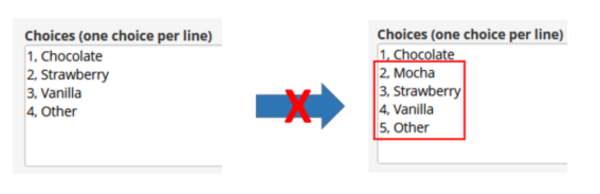
Above is the wrong way to add a new choice such as "Mocha". All of the records that had "Strawberry" as the favorite ice cream would have answer converted to "Mocha". Likewise, all of the "Vanilla" answers would be converted to "Strawberry". This would have a huge negative impact on the project's data integrity.
1. Check the summary of all drafted changes: Before submitting changes for review, always click on the "View detailed summary of all drafted changes" link.

2. Check for critical issues: The summary will show you if you have a critical issue. These changes are never automatically approved.
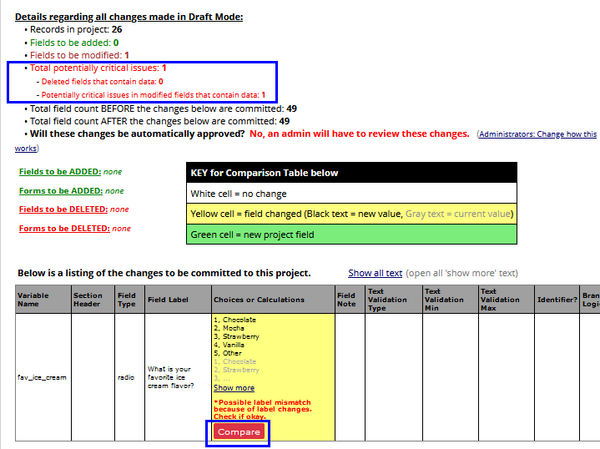
3. Click Compare: The Compare button will show how existing records will be altered by the changes.
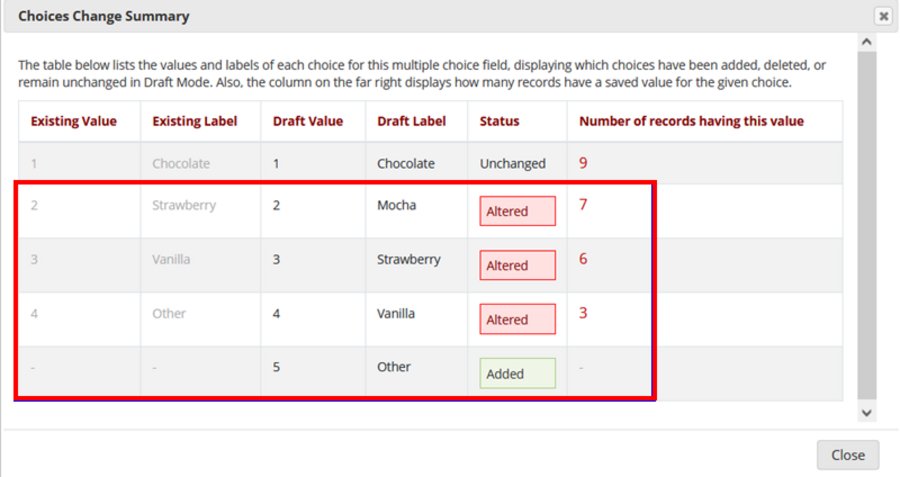
- 7 records would change from "Strawberry" to "Mocha"
- 6 records would change from "Vanilla" to "Strawberry"
- 3 records would change from "Other" to "Vanilla"
Obviously, this would alter the data from the participant's originally selected response, causing signficant issues.
4. Consider "Remove all drafted changes": Depending on your situation, you can remove all of the drafted changes, and begin again, or you can continue the edits in the instrument so that the critical issue no longer exists.

