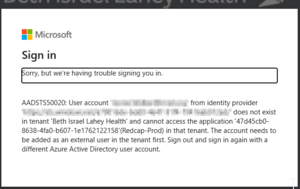
Many organizations use Microsoft Azure Active Directory/Entra to centrally manage their users, so that users only have to remember one password, and can use that to log in to multiple applications. In addition, AD/Entra tends to do something called “pass-through” authentication, where if you are already logged into one app on your computer, and you try to log into another, it just passes along your credentials, automatically logging you in, and you never even have to enter your username and password.
However, sometimes you have the ability to log in to applications hosted by two different organizations, and the pass-through login tries to use the wrong organization's username and password to log you in. This is particularly frustrating when you can't figure how how to get to the login screen.
The solution to this is to use a private browser window. Most modern web browsers have a "private browsing" mode- sometimes called "Incognito" or "InPrivate" or "Private" browsing. These private browser modes force you to enter your username and password; they do not allow "pass-though" log ins. If you are being logged in automatically but with the wrong credentials/wrong institution this will usually fix the problem.
Expiration dates for external user accounts are set for one year from the creation date. Setting an expiration helps keep our user base current by removing access automatically for users who are no longer actively using REDCap to collaborate in BIDMC studies.
A notification email of your upcoming expiration is sent to you and your sponsor about two weeks prior to the expiration. This is your opportunity to extend the account.
If you need to extend the account, please have your sponsor (listed on the email notification) email edata@bidmc.harvard.edu and ask to extend your expiration date for either one more year OR to a specific date.
If your account is not extended, it will be suspended on the expiration date. However, we can still extend your account at any time once the sponsor contacts us.
All REDCap accounts suspend automatically after 365 days of no activity (no logins) as a security measure. Please contact the REDCap Support Team at edata@bidmc.harvard.edu and include your Project Owner in the To field. Please ask the project owner to respond via email to confirm your account re-activation, and ask REDCap Support to do the re-activation. REDCap Support will re-activate the account as soon as they receive the confirmation from the project owner.
*This is the Principal Investigator as listed on the study protocol for Research projects, or the project owner as listed on the project request form for Quality Improvement/Quality Assurance or Administrative projects. If you belong to more than one REDCap project, any project owner of your projects on that server can confirm your account reactivation.
If you are a project owner of an active REDCap project, you just need to email REDCap Support, and do not need to include anyone else in the process.
Because BILH has several REDCap servers that function independently, your account may be active on one server, and expired on the other.
BILH/BIDMC employees/users with a BILH/BIDMC ITS account:
Double-check your username and password: Be sure to use your username, such as "jsmith", and not your email address. The password is your regular work password, the same one you use to log into email or computers. Carefully re-enter your username and password and try again.
Refresh the browser cache: When you are on the login page, try clearing the browser cache by holding down the Shift key on your keyboard, and pressing the page refresh button on your browser. Then try to log in again. If problems persist, please also try a different web browser, or a different computer.
Log in somewhere else: Verify that your username and password are working in other secure areas of BIDMC like your Outlook webmail account
Check with ITS: Sometimes there is an issue with the login servers, which are used by REDCap to authenticate users, but are maintained by ITS. Often, ITS Support can see a lock on your account and clear it. For that, you need to open a ticket with ITS at (617) 754-8080. (Unfortunately, the REDCap system administrators do not have the access needed to assist here.)
Use the right Login button: BILH users must use the blue 'BILH User Login' button. External users, from other institutions, must use the green 'Local REDCap Login' button...