
Deleting record(s) in Development is fine. Deleting a record while in Production should not be undertaken lightly. It may require notification of the IRB or PI, depending on the situation. Best practice guidelines are to document the record id, what is being deleted and the reason for the delete in a Word document, which can be uploaded to the project's File Repository. This documentation is particularly important in case of an audit of a multi-year study, where it may be difficult to recall individual events.
Technically, deleting a record tends to be a 2 step process:
- A user with admin rights in the project assigning themselves the delete permission
- That user doing the delete.
By default at BILH, no user has delete permission in the project. Users with admin rights, however, can grant themselves this permission.
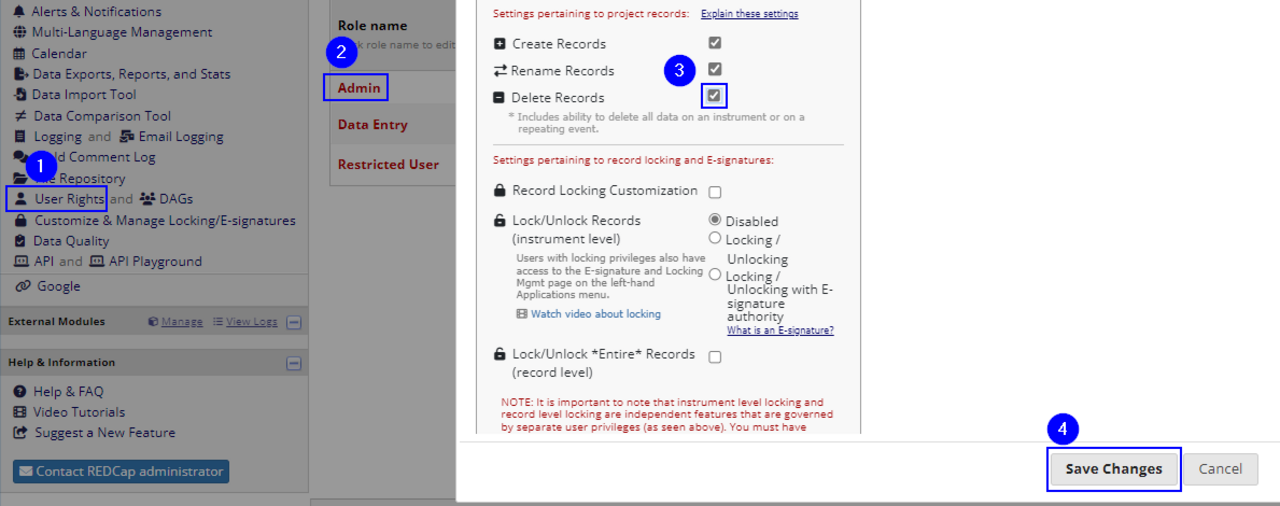
Add Delete to User Rights:
- Go to User Rights.
- Click on the name of the role to grant delete rights ("Admin" shown below).
- Find the "Delete Records" privilege and check the box.
- Save Changes.
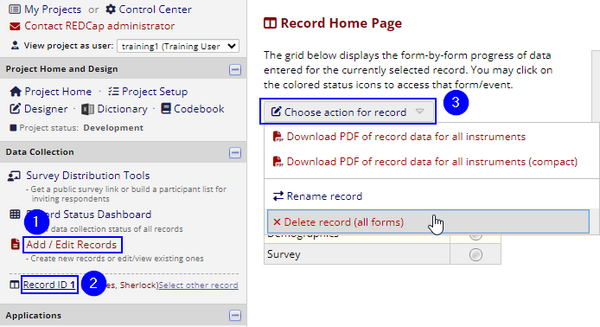
Delete a Record:
- Go to Add/Edit Records and open the record.
- Click on the Record ID in the left navigation bar to bring up that record's Record Home Page.
- Click "Choose action for record", and select "Delete record (all forms)" from the drop down menu.
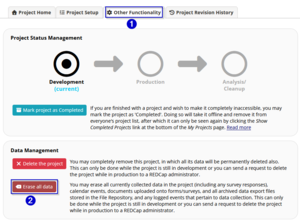
Delete All Records (only available in Development)
- Go to the Project Setup page. At the top, click the "Other Functionality" tab.
- Under 'Data Management', click the "Erase all data" button. (Be sure not to click "Delete the project"!)