

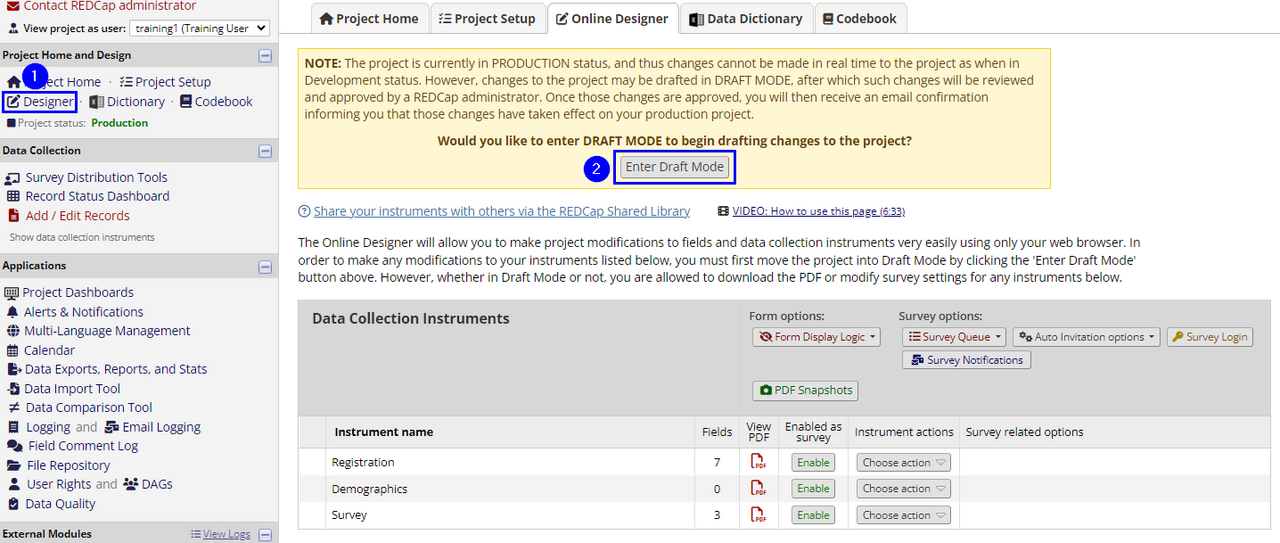
REDCap projects in production can be edited but the process is slightly different from editing in development mode. When in production, the user must first enter Draft Mode by clicking the "Enter Draft Mode" button at the top of the Designer page to start making changes.
- Changes made in Draft Mode are visible in the Designer but can't be seen on forms and surveys. This hides pending changes/edits from survey participants and data entry personnel, but it also means that editors can't test their changes before the changes are visible to everyone (after submission).
Once the changes are complete, click "View detailed summary of changes" (A) to review the changes. Then, click on the "Submit Change for Review" button (B).

A. Review your changes, and check for potentially critical issues. A critical issue is one that will delete or alter existing data; REDCap will list these. Also, the summary will tell you if your changes will be accepted automatically or if they need to be reviewed by the REDCap Team.
- Look for the Will these changes be automatically approved? line
- Click the "RETURN TO PREVIOUS PAGE" to be returned to the submission options.
B. If you are satisfied with your changes, click the "Submit Changes for Review" button. Changes that do not impact existing data will be accepted automatically. Changes that do impact existing data will be reviewed by the REDCap Team. You are welcome to email the REDCap Support Team about any changes that will be reviewed; mention if you have backed up the data and if you are sure of the impact of the change on existing records.
C. If you are not satisfied with your changes, you can choose to remove all of them. This is the only way to "undelete" a field that has been set to be deleted during these changes.
Tips
- Study Protocol: Be sure that your REDCap forms, users, and usage are in alignment with the study protocol. If a major change has to be made, verify with IRB staff if an IRB amendment is necessary to clarify both the change and the reason behind it.
- Back up first: Back up the data in your project before making major changes, using a full Data Export.
- One editor: Only one editor should make changes to a project's design at a time.
- Changes are approved/rejected collectively: For each "Submit Change for Review", all of the changes are approved or rejected together. It is strongly recommended to do edits in small batches, with minor changes done separately from major changes. Minor changes may be approved automatically; major changes should be done only one or two at a time in case they need to be rejected/removed. (This is especially important when deleting fields. If the REDCap System Admins need to "undelete" a field (aka "Remove all drafted changes", then all of the other changes will be lost, and will need to be re-done.)
- Hide, don't delete: Deleting a field deletes all of that field's data for all existing records. In most cases, it is better to hide a field rather than delete it unless you and the PI are absolutely sure it will never be needed. Consider the use of the @HIDDEN-SURVEY action tag on surveys.
- Notify REDCap Support: Email to REDCap Support (edata@bidmc.harvard.edu) about approving critical changes, especially if you need them approved as soon as possible. Please mention if backups were done, why the delete or change is being made, and why this data won't be needed in the future. This will speed the review process.
