

Answer
The list below is an abridged version of the REDCap Change Log Summary for the LTS 14.5.x branch, focusing on the end user impact at BILH.
1. Improvements to the Online Designer:
- New icons! The standard icons for Edit, Branching Logic, Copy Move, and Delete have been given an update.
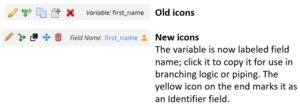
- Copy field names: The variable name is now called the more intuitive "field name"; when the blue field name is clicked, it will copy the field name to the clipboard for pasting into branching logic or piping.
- Identifiers icon: When viewing the fields in the Online Designer, a yellow person icon is now displayed to the right of the field name to denote the field has been marked as an Identifer.
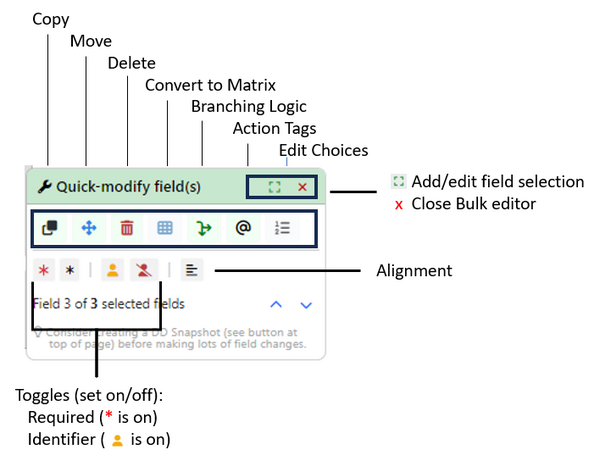
- Bulk field editing via "Quick modify field(s)" toolbar. The toolbar will appear when users check the new checkboxes located on the far right of each field (or if they Ctrl-click (or Cmd-click) one or more fields). Additions to this popup include the ability to edit the following for multiple fields: branching logic, action tags/field annotation, custom alignment, required status, identifier status, and multiple choice options (including the ability to copy choices - with new choice of location for copied fields, import choices from an existing field, convert a field to a different multiple choice field, and also append new choices using a fullblown choice editor).
- New Matrix options:
- Create: When multiple fields are selected, a new option to "Convert to matrix group" will appear on the Quick Modify Toolbar, thus allowing users to merge the selected fields into a matrix. See above.
- Split matrix into separate fields: When editing an existing matrix of fields, a new button will appear at the bottom left of the "Edit Matrix of Fields" dialog that says "Save & split matrix into separate fields". When clicked, it will convert the matrix into separate fields.
- Move Field(s) has 2 new options:
- Add to empty instrument: When moving one or more fields in the Online Designer, a new option will appear in the field selection drop-down to allow the user to move a field to an empty instrument (i.e., an instrument with no defined fields). In previous versions, fields could only be moved to an instrument containing at least one field (not counting the Form Status field).
- Create new instrument: When moving one or more fields in the Online Designer, a new option will appear at the end of the field selection drop-down to allow the user to auto-create an instrument while moving the field(s) to that new instrument. Note: The new instrument will be named "New Instrument" by default, although the user can always rename it after the fact.
- New "Go to field" feature (invoked via Ctrl-G or Cmd-G) allows users to search for a variable by name and then navigate directly to its location in the Online Designer, even if the field is on a different instrument than the current one.
- Find Embedded Field: In the Online Designer, when a user clicks on the green button "Field is embedded elsewhere on this page" on an embedded field in the table, the page will scroll up to where the field is embedded and flash a red border around the container field. This will make it easier for users to find where a field is embedded.
- Font Family/Font Size: The rich text editor used throughout REDCap now has a new drop-down option in the editor's toolbar for setting the "font family" and "font size" of any text in the editor.
- Magic box: When adding/editing a Descriptive Text field in the Online Designer, the text in the "Optional file attachment, image, audio, or video" section of the popup has been modified to instruct the user that the "Embed an external video" feature can be used for more than just videos but for websites and surveys too (i.e., the "Magic Box" feature, as some call it). The text has been changed to "Optional media to embed or attach:" and "Embed media (video, website, survey, etc.)", respectively. Other relevant text in the popup has also been modified to refer to "media" more generically rather than "video".
2. Improvements to User Rights:
- A "Remove from project" button was added inside the "User actions" popup that allows the user to be removed from a project directly without having to un-assign them from the role first.
- New Read Only user privilege: Users and roles can now be given Read Only access to the User Rights page, which will allow users to view the page but not be able to take any actions on the page. Note: If a user is in a Data Access Group while viewing the page, it is still the case that they can only view users from their own DAG on the page.
3. Data Resolution Workflow
- A new project-level setting "Hide closed/verified data queries from Data Quality results" has been added that can be used with the Data Resolution Workflow. This setting defaults to an Enabled/Checked value, and it can be changed in the DRW/Field Comment Log section of the Additional Customizations dialog on the Project Setup page. If users prefer for closed and/or verified data queries in the DRW to always be visible in results on the Data Quality page, they can uncheck this new setting in the project.
- Data Quality Rules do not exclude "closed" queries: When using the Data Resolution Workflow in a project, it has always been the case that the results of data quality rules would automatically "exclude" fields that have a data query with "closed" status. Many users have complained about this behavior and have stated that the discrepancies should still be displayed in the data quality rule results regardless of the field's data query status. From now on, such fields will no longer be automatically "excluded" simply because they have a data query with "closed" status.
4. Action Tags: New and Improvements
- New action tag @INLINE-PREVIEW - When this action tag is added to File Upload fields or Description Text fields, a preview button will be displayed next to the field on survey pages and data entry forms if the uploaded file is an image or PDF file. Clicking the preview button will immediately display the image/PDF inline on the page, after which it can be closed again, if desired. This allows users/participants to view the file without having to download it to their local device.
- New action tag @SHOWCHOICE - When applied to a multiple-choice field, this action tag will hide all choices except for the ones listed in its argument. This action tag is useful if you wish to only show a subset of choices depending on some logic (e.g., depending on data access groups) via the IF action tag. The format must follow the pattern @SHOWCHOICE='??', in which the coded values should be inside single or double quotes for the choice(s) you wish to show. If more than one choice needs to be shown, then provide all the coded values separated by commas. For example, to show the choice 'Monday (1)', you would have @SHOWCHOICE='1', but if you wanted to additionally show 'Tuesday (2)', you would have @SHOWCHOICE='1,2'. NOTE: The @SHOWCHOICE action tag supports piping into its argument - e.g., @SHOWCHOICE=[my_checkbox:checked:value].
- The @HIDECHOICE action tag now supports piping into its argument -e.g., @HIDECHOICE=[my_checkbox:checked:value].
5. New functions and piping options:
- New special functions for date/datetime fields:
- year() - Returns the year component of a date/datetime field e.g., year([dob]).
- month() - Returns the month component of a date/datetime field e.g., month([visit_datetime]).
- day() - Returns the day component of a date/datetime field e.g., day([visit_date])
- New math functions:
- mod(dividend,divisor) - Modulo returns the remainder of the (integer) division (modulo) dividend/divisor. Both values must be integers. E.g. mod(10,4) will result in 2 because 2 is the remainder of 10 divided by 4.
- exponential(number) - Exponential of e - Returns "e" (Euler's Number) raised to the power of a number: e^x. Note: The value of the exponent x must be a number. E.g. exponential(1) will return 2.718281828459045.
- New text string functions:
- replace_text(haystack, search, replace) - Replaces parts of a text value with a specified replacement text value. Finds text ("search") inside another text ("haystack") and replaces all found occurrences with the given text ("replace"). For example, assuming [field1] has a value of "Paul Taylor, Rob Taylor", replace_text([field1], "Taylor", "Harris") would result in "Paul Harris, Rob Harris". Note: This function performs a case-sensitive replacement. Additionally, you can search for line breaks (e.g. in Notes fields) with "\n".
- concat_ws(separator, text, text, ...) - Joins the text from multiple text strings with a separator. This works exactly like concat but inserts the separator in between each concatenated item. For example, concat_ws(" and ", [veggie1], [veggie2], "Tomatoes") might result in "Peas and Carrots and Tomatoes".
- New piping parameters for date/datetime fields:
- :year - Returns the year component of a date/datetime field e.g., [dob:year].
- :month - Returns the month component of a date/datetime field e.g., [visit_datetime:month].
- :day - Returns the day component of a date/datetime field – e.g., [visit_date:day]
6. Misc
- New "Test Run" option when re-evaluating Alerts and Automated Survey Invitations - When performing the "Re-evaluate" feature for Alerts and ASIs, a new toggle that says "Enable Test Run?" can be clicked in the dialog, which will perform a test run (dry run) to simulate what would have happened (e.g., schedule or send alerts/invitations) but without actually doing anything. This will allow users to feel more confident if they actually need to perform a real re-evaluation of Alerts or ASIs so that they know beforehand how many records will be affected during the re-evaluation. In addition, users may download a CSV file of all affected record names afterward, whether using the test run option or not.
- PDF resizer option: When viewing an inline PDF (whether via Descriptive Text field, INLINE or INLINE-PREVIEW action tag, or the :inline piping parameter), a PDF resizer option will appear immediately below the embedded PDF, allowing users to adjust the vertical size of the PDF displayed on the page. Clicking the center button on the resizer will set the PDF to be the full height of the browser.
- PID: The PID number for a project is now displayed on the My Projects page for all user types, whereas in previous versions it was only displayed for system administrators.
See also:
Upgrade Notes
