

Answer
A role is a group of users that have the same permissions. Using roles makes managing user access faster and more organized; it is a recommended best practice. When you add a user to a role, they automatically assume the permissions of the role. If you remove a user from a role, they initially retain the same permissions they had in role, but as custom rights.
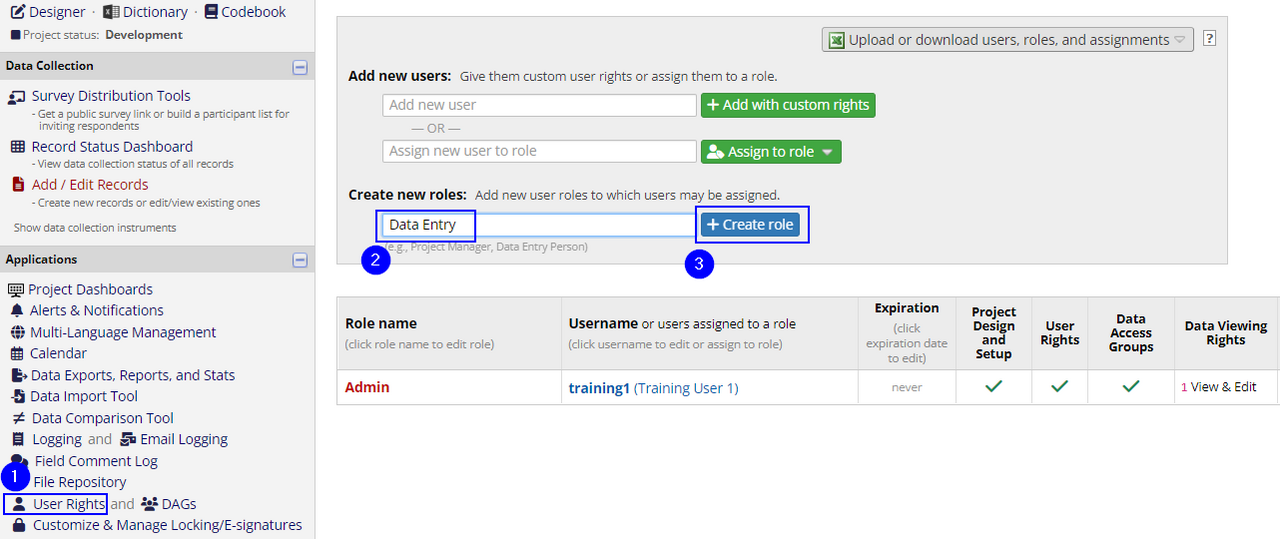
Create a Role:
- Go to User Rights in the left-hand navigation bar.
- Enter a role name in the "Create new roles" box.
- Click the blue "Create role" button.
- A dialog box window will open, allowing you to set the permissions for the new role. Select the rights applicable to the role, and click "Save".
Edit, Copy or Delete a Role:
- Go to User Rights in the left-hand navigation bar.
- Click on the name of the role, in red, to bring up the permissions dialog box for that role
- Edit the permissions as needed and click "Save". The permissions dialog box also has options to delete or copy the role in the lower right-hand corner.
Possible Roles
The study team can create any roles needed for their project. The outlines below are simply food for thought, and not meant to restrict study teams to a particular set of roles, or definition of roles.
- Admin: Full rights to project. By default, the REDCap Team creates this group when creating the project, and assigns the Principal Investigator to it.
- The "Delete Records" right is unchecked by default, as are the rights pertaining to locking records and electronic signatures. Admins can go in and grant themselves these rights if they wish.
- Only Admins should have "User Rights" privilege- the ability to add/edit/remove users from the project, and set their access level. Any user with User Rights can edit their own rights to the project, as well as other people's rights; because of this, all users with User Rights privileges effectively have full rights to the project.
- Designer: Has the "Project Design and Setup" rights, to be able to build forms and instruments, but does not have User Rights.
- Data Entry: Can create and rename records, but cannot add/remove users, or change the design of the forms or the project.
- Read-only: Can read existing records, but cannot create/modify existing records, nor modify the design of the project or its users.
See also:
Users
