
Development vs. Production
The REDcap application assumes that any data entered in development mode is test data. While in development mode, REDCap does NOT track changes to a project's design and will suppress all warning messages related to data that is about to be lost. This is actually preferred and expected when a team is spending a few weeks setting up instruments and testing.
But, if a project is left in Development mode with real data, a design change that appears trivial (such as changing a variable name or re-numbering choices) can cause data to be lost or compromised without warning. For this reason, it is very important that you move to Production mode before collecting real data.
In Production, there are built-in protections to ensure you are aware when any data will be lost or modified due to a design change. First, the user making the change is notified when submitting the changes. Then, if data will be changed or deleted, the REDCap Support team is required to review the changes, and will ask for confirmation via email for deletions or major changes in meaning. These protections are essential to data integrity.
However, if you have accidentally collected real data in development mode, you can preserve it when moving to Production.
Move Project to Production
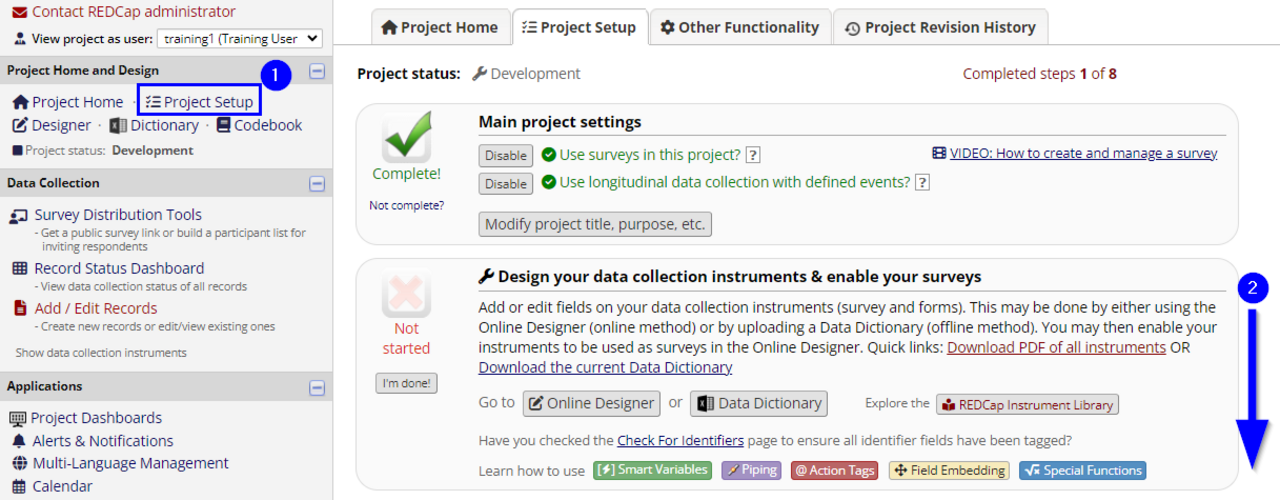
Log in to REDCap and open the project in question:
- Go to the 'Project Setup' page, if that was not the default when opening the project.
- Scroll to the bottom of the 'Project Setup' page.
- Click the 'Move project to production' button.
- Read the 'Notice' window. Click 'Cancel' if any of Notice terms are not true, or if there is any confusion. Otherwise, click 'I Agree'. It includes reminders such as:
- Moving to production is a manual process for admins, and may take 2-3 business days.
- Be sure you have entered 2-5 complete test records across all forms and events.
- Verify all forms are working correctly, especially for branching logic, calculated fields, and any needed uploads.
- Be sure that all fields collecting PHI or identifying information have been marked as 'Identifiers' in the Designer.
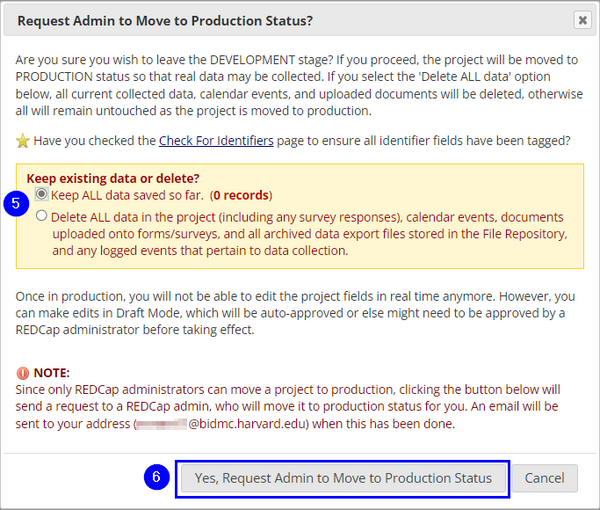
- Choose to keep or delete existing data. If there is any live data or data that needs to be kept, select 'Keep ALL data'. Otherwise, select to 'Delete ALL data' to clear the test data out of your project.
- Click 'YES, Move to Production Status'.

Step 4 does not have an image.