
Note: This section assumes that the user already has their IRB approved protocol, requested their REDCap project, created their data collection instruments and fields, and requested Clinical Data Pull (CDP) be enabled for their project from REDCap Support. It is strongly recommended that projects be in development mode (no real data) when requesting CDP.
- The REDCap Support Team will enable CDP and give permission for setting up and adjudicating data to the project Admin role.
- Once enabled, note several changes to the project:
- A ‘Clinical Data Interoperability Services’ section has been added to the left navigation bar.
- A ‘Set up Clinical Data Pull from EPIC’ section has been added to the Project Setup page (below ‘Enable optional modules and customizations’)
- An ‘EHR Access Information’ section has been added to the Project Home tab.
- Standalone Launch: Click 'Standalone Launch' under 'Clinical Data Interoperability Services’ in the left hand navigation bar. This establishes your credentials in both systems, so that REDCap can check which fields are available in Epic during the mapping steps.
Initial Mapping Setup: One the Project Setup page, go to the new ‘Set up Clinical Data Pull from Epic’ block, and click the ‘Set up mapping for Clinical Data Pull (CDP)’ button.
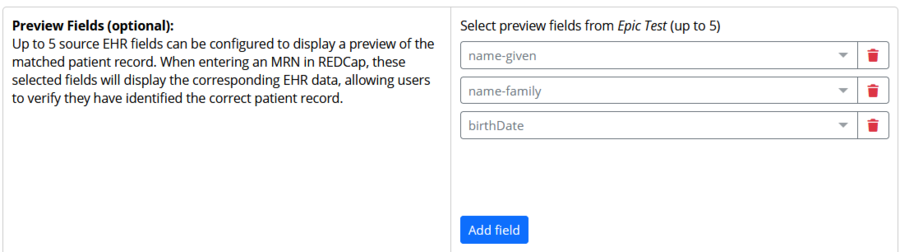
- Preview Fields (optional): These fields can help you identify if you have the right patient (for instance, show patient name and date of birth in addition to the MRN). To add a preview field, click on the blue 'Add field' button, and select the field from the list. Then, click on the blue Save button.
Default day offset (for temporal fields): Used to create a window of time for searching for data. Accept 7 days as a default unless you have a specific reason to change it.
- One-time data: One-time data fields are those where data will only be stored one time in Epic, such as race, gender, and home address.
- Temporal data: Temporal data fields are those where data may be collected many times over a period of time (e.g., labs, vitals). When mapping temporal fields, you must also specify a REDCap date/datetime field that will be used for determining the window of time in which it should look when fetching data from the source system. It will determine the window of time in conjunction with the day offset value defined on the mapping page.
It is important to note that the source data for a temporal field will NOT be fetched from the external source system UNLESS its associated REDCap date/datetime field has a value. Once a value is entered for the associated date/datetime field, source data will then be fetched for that temporal field.
- Adjudication method: Adjudication is the process of reviewing data and choosing to accept it from Epic. Novice CDIS users are recommended to start with "Manual'.
- Manual: The data pulled for each record is manually reviewed and “accepted”.
- Instant: Rather than reviewing every record individually, the user can apply all pending pulled EHR data in one step.
- Auto: This option automatically applies (saves) all data pulled from the EHR to the REDCap records without user intervention. This can be set up to happen at regular intervals.
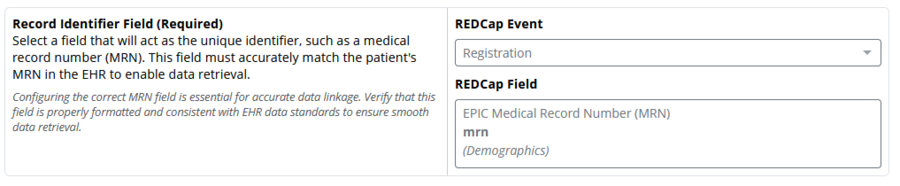
Record Identifier Field (Required): This field must be the REDCap field that holds the MRN. The event must be the event for the form that contains the MRN value. See below:
- Save: Click the Save button to save the settings so far.
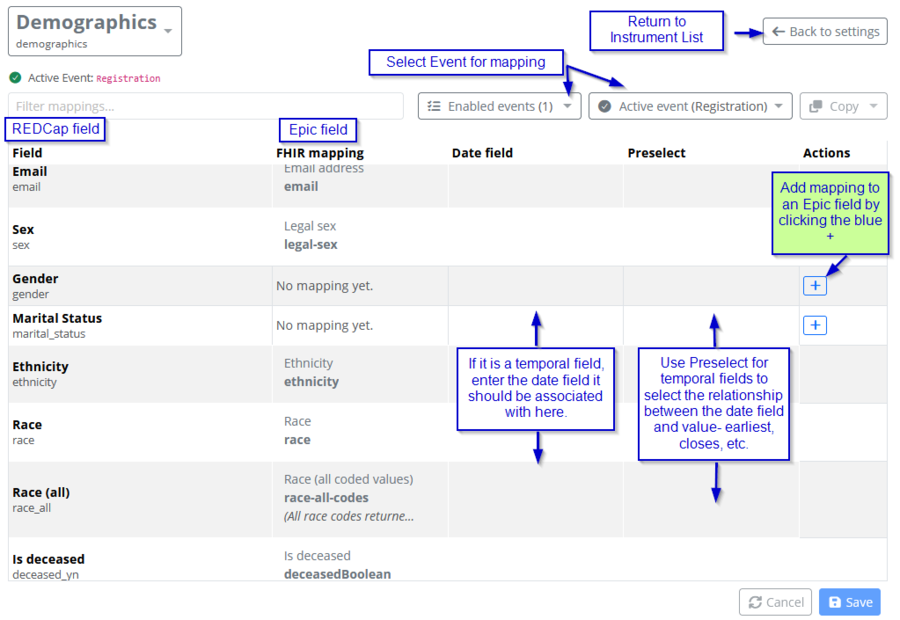
- Instruments: All of the project’s instruments are listed. Click on an instrument name to open it and map its fields. Note that there is an ‘Active event’ drop-down menu at the top if the instrument is associated with more than one event.
- Field: All of the form’s REDCap fields will be listed in the left most column. To map a field, go to that row’s Actions, and click the blue plus button.
- FHIR mapping: This will display the Epic field name once the field has been mapped. Else, it says 'No mapping yet.'
- Date field: If the field to be mapped is temporal, choose the REDCap date field it should be associated with. For instance, if it was a lab value (such as White Blood Cells ('wbc')) it might be 'lab_date'.
- Preselect: What is the relationship between the temporal field and the date field? Choose an option such as 'closest value', 'earliest value', etc.
- Actions: Use to add mapping.
- Save: Click the Save button to save the mappings. Be sure to do this often!