

Answer
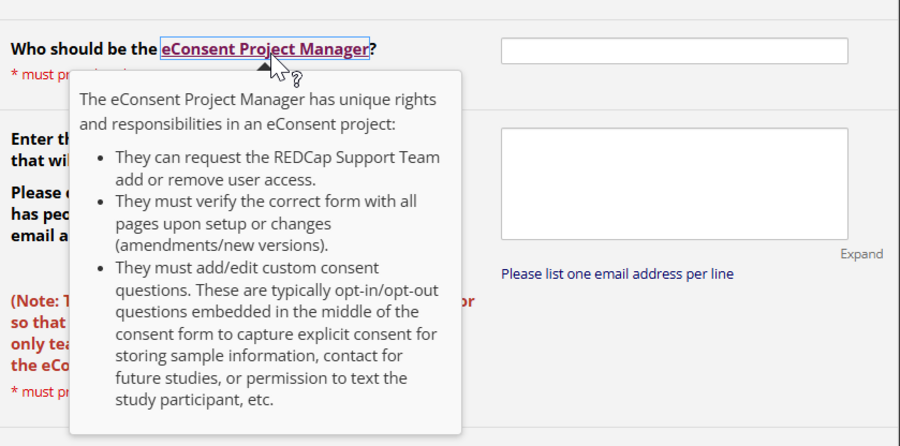
Newly available in REDCap version 15: Descriptive Popups! Descriptive popups are small pop-up boxes of text that become visible when hovering the mouse over a specific word or phrase on a data entry form or survey.
Example:
To add a descriptive pop-up:
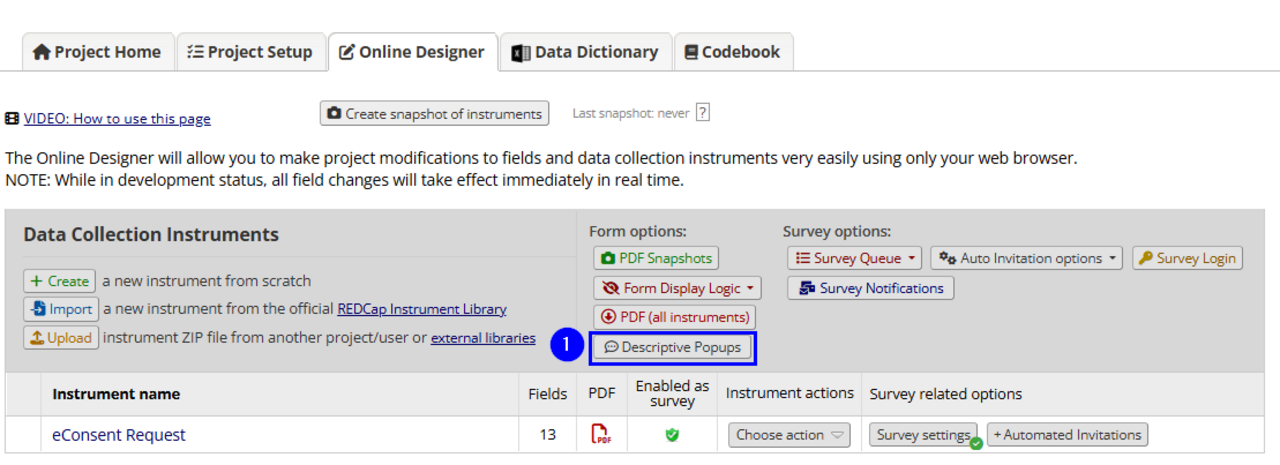
- Go to the Online Designer page, and click on the 'Descriptive Popups' button in the top grey box.
- On the Descriptive Popups tab, click the green 'Add New Popup' button.
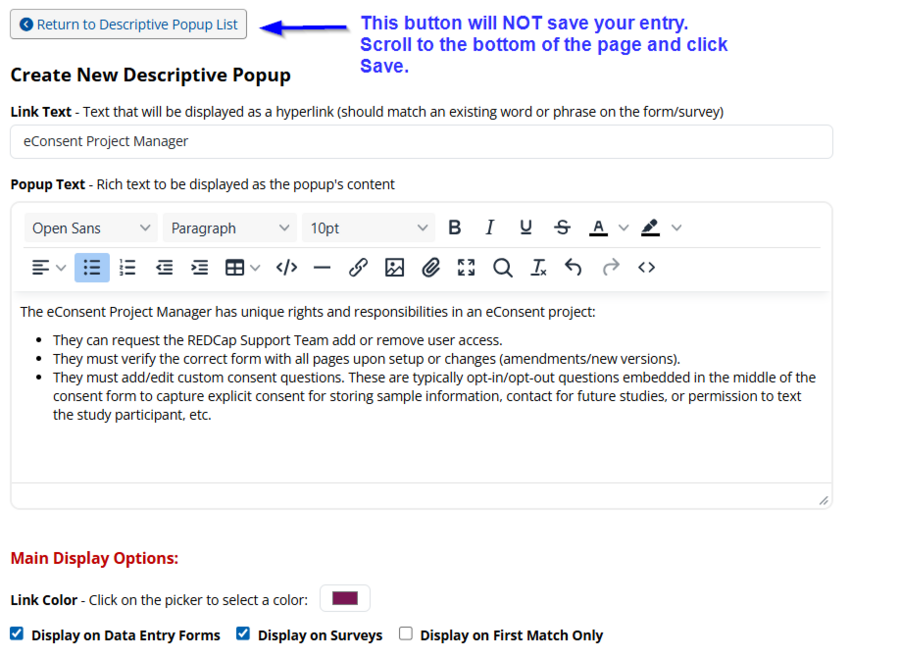
- Configure your Descriptive Popup:
- Add the link text in the Link Text box. This should be a word or short phrase.
- Enter the custom text, and format it in the Popup Text box.
- Under the Main Display options, you can specify whether the popups should occur on data forms only, Survey pages, and on the first match only.
- Scroll down to the bottom of the page and click 'Save'.
- You will be asked to Confirm your selections- click 'Save Changes'.
- Click the Online Designer tab if necessary to return to the Online Designer page. The Descriptive popups button will have a small checkmark next to it if there are saved Descriptive Popups.
Step 1:
Step 3:
See also:
Upgrade Notes
