
REDCap Upgrade
The newest upgrade of REDCap at BILH has great features for all REDCap users, project designers in particular. This includes:
- New icons in the online designer
- Bulk editing of fields in the online designer
- Bulk move of fields in the online designer
- Split matrix into separate fields / create matrix from existing fields
- New user rights option: "Read-only" access user rights.
- Single step user removal
Designer: New icons
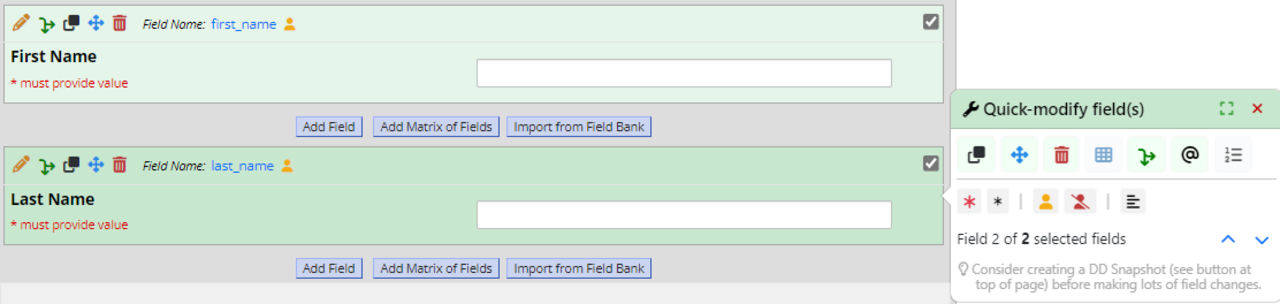
In the Designer, the icons in the upper left will be updated. New functionality includes being able to click on a blue field name (aka variable name- first_name below) to copy that field name to the clipboard for use in later branching logic or piping. Also, any field tagged as an identifier will have a gold person icon to flag it visually.
In order left to right: Edit, Branching Logic, Copy, Move, Delete

Designer: Bulk editing of fields
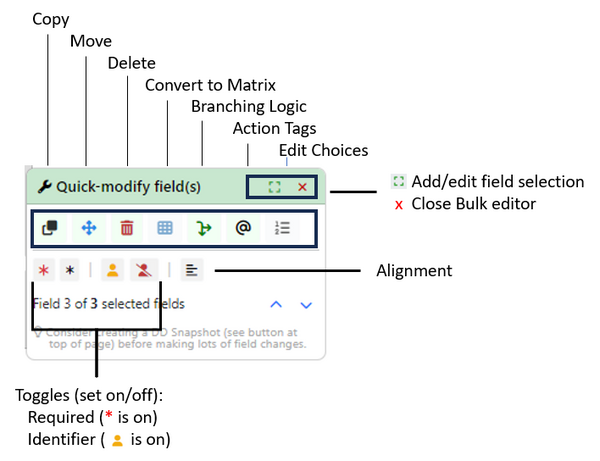
All fields will have a checkbox in the upper right for selection. Once one or more are selected, the Quick-Modify pop-up box will allow bulk editing of the selected fields.
Designer: Move/Bulk Move
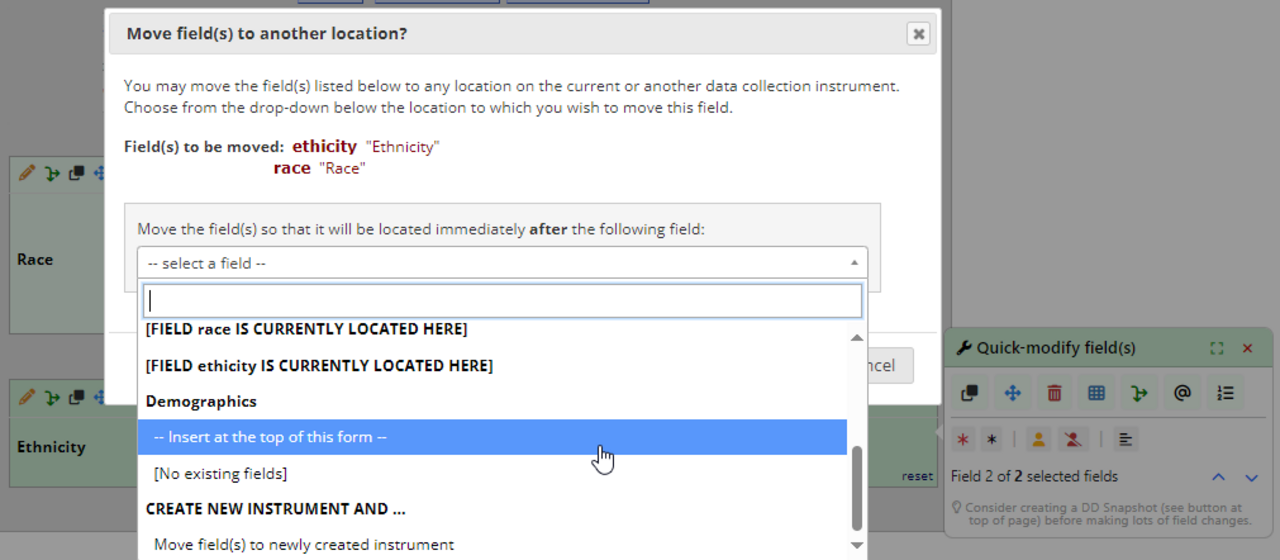
Move has several new features- first, it is easy to move several fields at once using the checkboxes. Then, fields can be moved to a blank instrument (previously, at least one placeholder field had to be created in order to move fields to a new form). Finally, there is now the option to create a new instrument on the fly during a move.
Designer: Split Matrix into Fields and Create Matrix
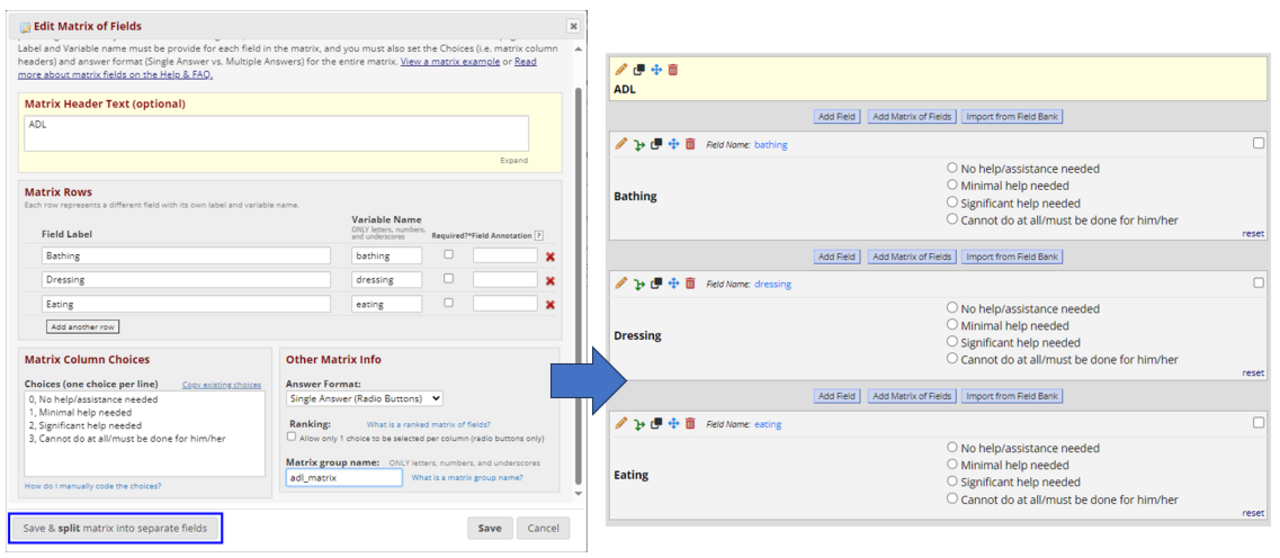
Until now, a field matrix could not be split apart in the online designer without re-creating the fields or downloading and editing the data dictionary. With the upgrade, a new new option appears in the bottom left of the matrix box- "Save & split matrix into separate fields".
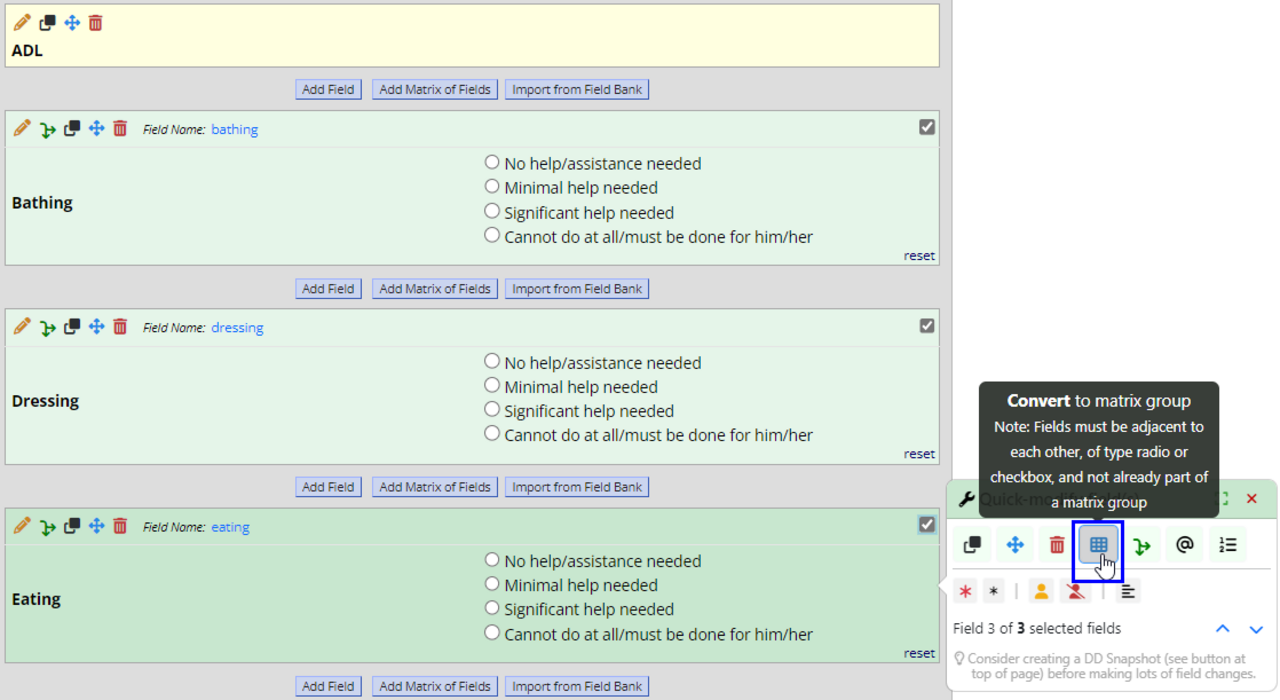
Likewise, radio button or checkbox fields that are adjacent to each other can be combined into a matrix via the Quick-Modify toolbar.
User Rights: Read-Only
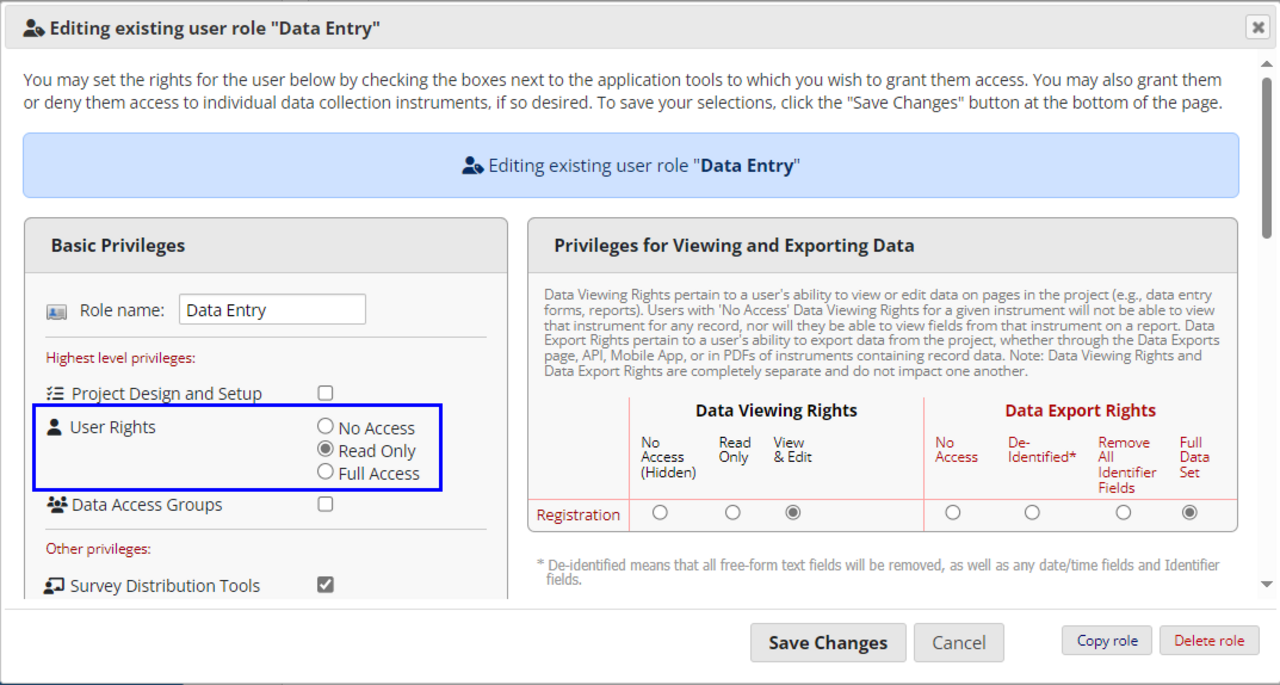
User rights will have a new option- "read-only". Users with the "Read-only User Rights" will be able to view all users in the project and their permissions, but cannot change them. This allows users to be aware of who has project admin rights if design changes need to be made, or if new users need to be added.

User Rights: Single Step Remove User
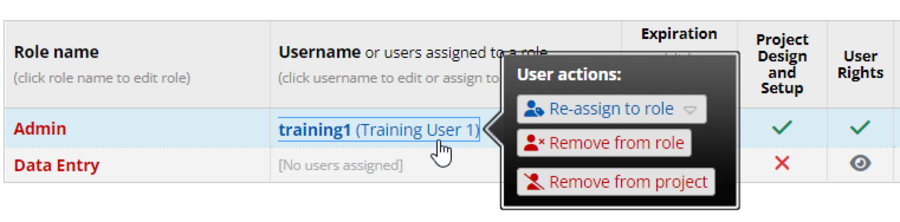
Until now, if a user was in a Role, they had to be removed from the role before they could be removed from the project. Even if they were not in a role, the user rights had to be opened to remove a user from the project. Now, a user can be removed by clicking on their name and selecting 'Remove from Project' from the pop-up menu.
As always, removing a user from a project only removes their access; it does not impact any project data. Please do remove users who have left the study; they can always be re-added if they return.